Updating and recovery
Update Lappy safely.
Back up, install and verify over USB — and return to the same release if an update is interrupted.
You’ll need
- A laptop or desktop using Chrome or Edge, or the desktop updater.
- A USB data cable. Charge-only cables do not appear in the device list.
- A local folder with at least 32 MiB free for the internal-flash backup, firmware and recovery files.
Steps
Switch Lappy off and connect it
Hold PWR to save and shut down, then connect Lappy to the computer with a data cable.
Choose Connect Lappy
Select the intended serial device in the browser picker. Cancelling selection writes no firmware.
Choose a backup folder
The updater reads all 16 MiB of internal flash, saves recovery files, then reads the saved files back. The installed version is recognized during preparation.
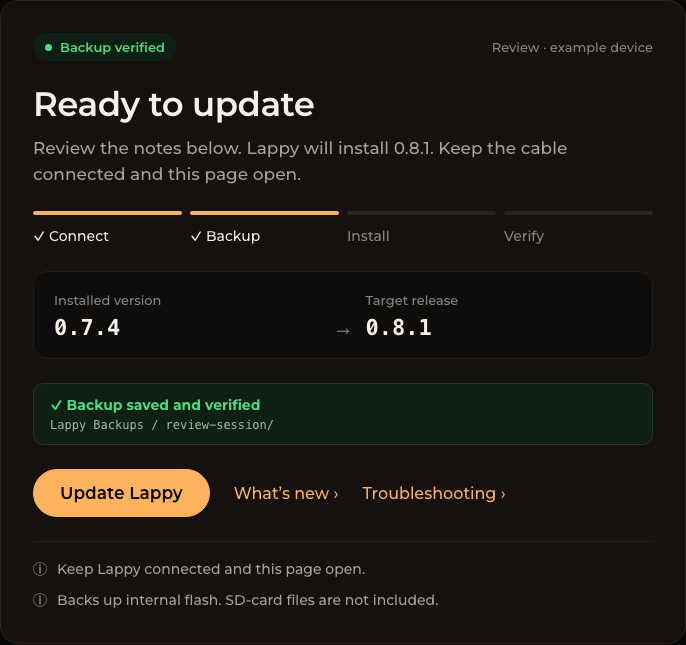
Review, then choose Update Lappy
Check both versions, release notes and Backup saved and verified. Keep the connection and page open. Preparation may reset Lappy’s screen.
Wait 30 seconds, then unplug USB
After the page shows Update complete / Firmware verified, wait 30 seconds, then unplug the USB cable. If Lappy does not turn on automatically after unplugging, turn it on normally. Verification confirms the written firmware, not whether the screen has turned on.
If an update is interrupted
Keep the original session folder. It contains your pre-update backup and the exact release. Reconnect the same Lappy and recover that update; a newer release will not replace the interrupted target.
Recovery instructions ›Troubleshooting
No device appears
Try a known USB data cable, another USB port and a direct connection without a hub. Close other software using the serial port.
Permission was denied
Allow USB and local-folder access when prompted. If blocked previously, review this site’s browser permissions.
The backup cannot be saved
No device write is allowed until saved recovery files pass read-back. Choose a local writable folder with enough space.
The update was interrupted
Choose Recover update, select the original session directory and reconnect the same Lappy. Retry uses the exact retained package.
The screen remains dark
After Firmware verified, wait 30 seconds, unplug USB and turn Lappy on normally if needed. If it still cannot start, use the recovery guide and retain the original backup folder.